
Have you ever noticed your phone’s battery mysteriously draining faster when you’re connected to Wi-Fi? You’re not alone. Wi-Fi killing your phone’s battery is a common issue many smartphone users experience. While Wi-Fi is generally more power-efficient than cellular data, it can sometimes become a surprising culprit behind rapid battery depletion. Let’s unravel this phenomenon and equip you with actionable tips to keep your phone charged.
Is Your Wi-Fi Killing Your Phone’s Battery: The Wi-Fi and Battery Drain Connection – How It Works
Understanding the relationship between Wi-Fi and battery drain requires a peek into how your phone’s components interact:
- The Constant Search: Even when you’re not actively using the internet, your phone’s Wi-Fi radio constantly scans for available networks. This “seeking” behavior consumes energy, especially in areas with weak or fluctuating signals.
- Background Activities: Many apps silently use Wi-Fi in the background to fetch updates, sync data, or deliver notifications. This constant activity keeps the Wi-Fi radio engaged and draws power.
- Old Hardware: Older phones with less efficient Wi-Fi chips tend to consume more energy compared to newer models with optimized hardware.
- Signal Strength: Weak Wi-Fi signals force your phone to work harder to maintain a connection, which can lead to increased power consumption and affect battery life, especially when apps continuously attempt to reconnect. If you’re experiencing issues like why is my internet not working on my phone, it’s essential to explore more about optimizing your Wi-Fi setup for better connectivity.
Is Your Wi-Fi Killing Your Phone’s Battery: Troubleshooting – Reclaim Your Battery Life
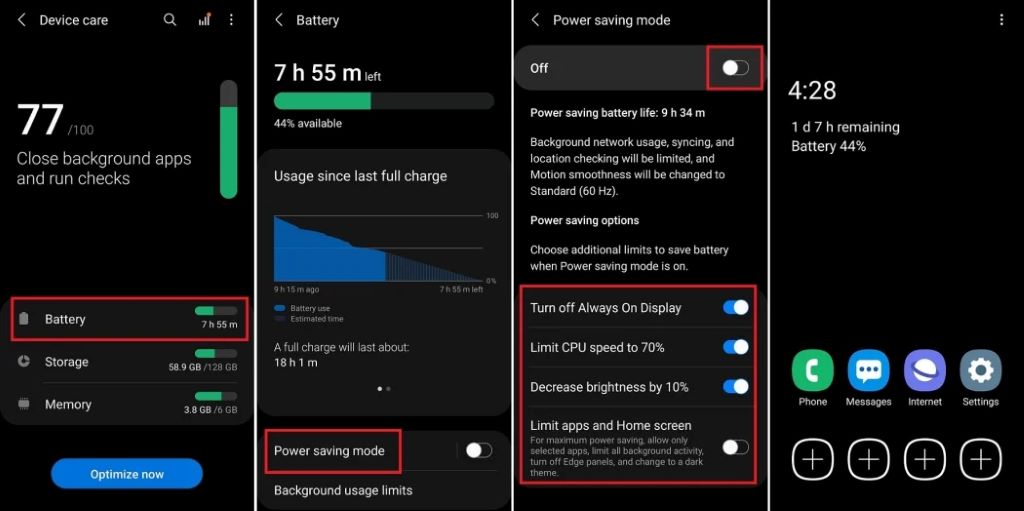
If you suspect Wi-Fi is draining your phone’s battery, don’t despair. Here are effective troubleshooting steps:
- Check Signal Strength: Ensure you have a strong Wi-Fi signal. Move closer to the router or consider using a Wi-Fi extender for improved coverage.
- Forget Unused Networks: Your phone remembers every network you’ve ever connected to. Forget those you rarely use to reduce unnecessary scanning.
- Go to Settings > Wi-Fi
- Tap the network you want to forget and select Forget
- Limit Background Data: Restrict apps from using Wi-Fi in the background.
- Go to Settings > Apps & notifications
- Select an app, then tap Data usage
- Disable Background data
- Update Apps and Software: Developers often release updates that improve power efficiency. Keep your apps and phone’s operating system up-to-date.
- Disable Wi-Fi Scanning: This feature, while useful for location services, can contribute to battery drain.
- Go to Settings > Location
- Tap Wi-Fi scanning and disable it.
- Wi-Fi Sleep Policy: Adjust your Wi-Fi sleep policy to “Never” while charging.
- Go to Settings > Wi-Fi > Advanced
- Tap Keep Wi-Fi on during sleep and select Never
- Use Airplane Mode: When Wi-Fi isn’t needed, switching to Airplane Mode disables the Wi-Fi radio and other radios, significantly saving power.
- Restart Your Router: Sometimes, router issues can cause your phone to work harder. Restarting your router can often resolve such problems.
- Consider a Battery Pack: If you’re frequently away from power sources, a portable battery pack can provide an extra charge when needed.
- Check for Hardware Issues: If none of the above solutions work, your phone’s Wi-Fi chip might be faulty. Consult a professional for diagnosis and repair.
Is Your Wi-Fi Killing Your Phone’s Battery: Beyond Wi-Fi – Additional Battery-Saving Tips
While addressing Wi-Fi-related drain is important, consider these additional strategies:
- Reduce Screen Brightness: Your screen is a major power consumer. Lowering brightness can make a noticeable difference.
- Disable Vibrations: Vibrations consume more power than ringtones. Switch to silent mode or use ringtones instead.
- Manage Location Services: Many apps use location services, which can drain your battery. Limit app access to your location or disable it entirely when not needed.
Related: Unlocking Proficient on Indeed: How Gamers Can Leverage Their Problem-Solving Skills
The Future of Wi-Fi and Battery Life
As technology evolves, Wi-Fi chips are becoming more power-efficient. Newer standards like Wi-Fi 6 (802.11ax) are designed with energy conservation in mind, promising improved battery life for future devices.
By understanding the nuances of Wi-Fi-related battery drain and implementing the troubleshooting tips outlined here, you can regain control over your phone’s power consumption and enjoy longer-lasting battery life.